
Product
Dynamics 365 Finance
Description
Once you get the SQL server name from UAT environment details page on LCS, it would look like this:
<SQL server name>\<Database name>
Copy SQL server name and append .database.windows.net at the end so that it becomes:
<SQL server name>.database.windows.net
Use this string to connect to the database in SQL Server Management Studio.
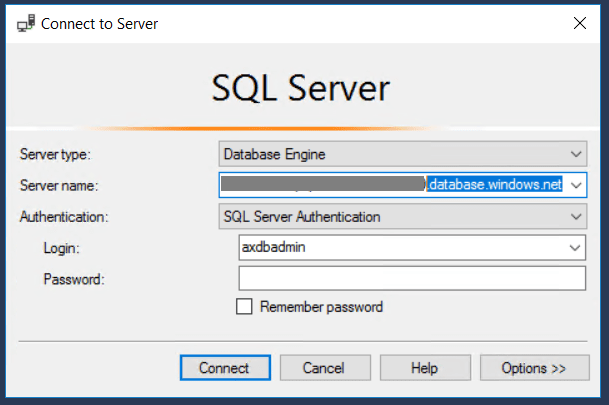
You may get the following error now:
Client with IP address %1 is not allowed to access the server. To enable access, use the Windows Azure Management Portal or run sp_set_firewall_rule on the master database to create a firewall rule for this IP address or address range…
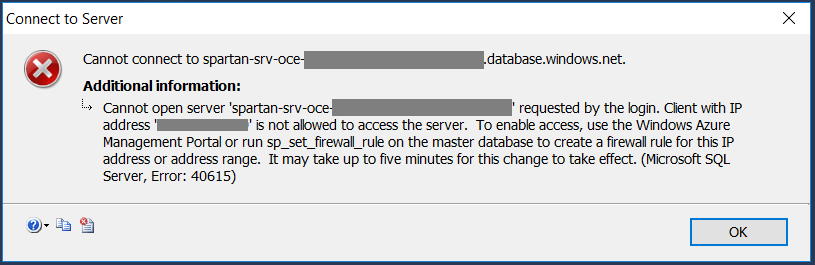
To resolve this issue copy database name from LCS environment page to the Connection Properties tab after clicking Options at the bottom of the Login dialog.

And if you need to enable access to the environment for a user, you can run the following script
update UserInfo
set Enable = '1'
where ID = 'userid'
 D365 for Finance and Operations
Leave a comment